
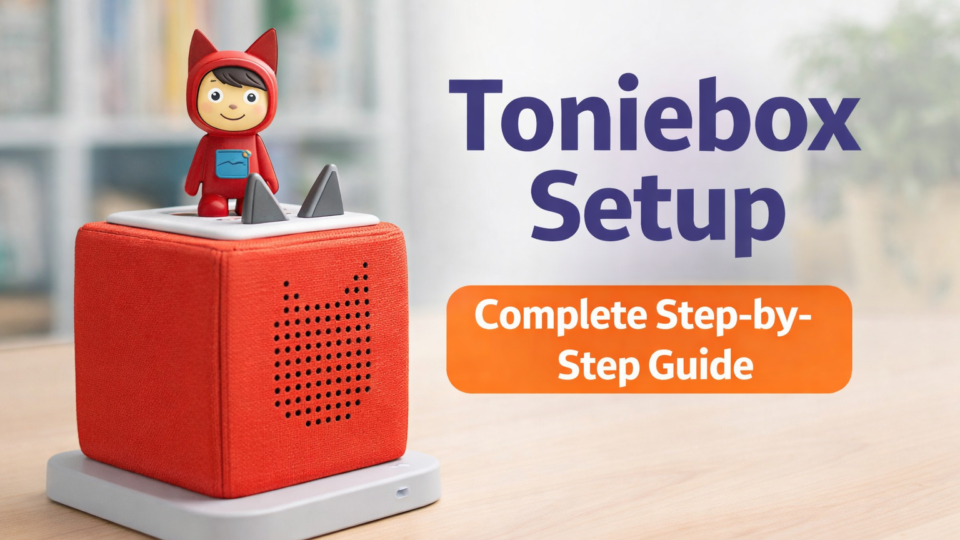
Toniebox Setup: Complete Step-by-Step Guide for Easy Installation
If you’ve just bought a Toniebox, the first thing you’ll need is a proper toniebox setup. While the device is designed to be child-friendly, the initial installation requires a few simple steps from parents. This guide explains everything clearly so you can get your Toniebox running quickly and safely.
At http://toniebox.uk/, we often see parents searching for simple setup instructions. So here is a clean, beginner-friendly guide with no confusion.
What You Need Before Starting Toniebox Setup
Before beginning the toniebox setup process, make sure you have:
- A fully charged Toniebox
- A stable WiFi connection (2.4 GHz recommended)
- A smartphone, tablet, or computer
- Your Toniebox charging station
- At least one Tonie character
Once you have these ready, you can begin.
Step 1: Charge the Toniebox
Place the Toniebox on its charging station. The LED light will indicate charging status.
It is recommended to charge the device fully before starting the toniebox setup to avoid interruptions.
Step 2: Create or Log In to Your Tonie Account
Visit the official Tonie website and create an account.
You will need:
- Email address
- Password
- Country selection
This account will allow you to manage WiFi settings, Creative Tonies, and content downloads.
Step 3: Turn On the Toniebox
To power it on:
- Squeeze one of the ears for about 3 seconds
- You will hear a startup sound
Now your device is ready to connect to WiFi.
Step 4: Connect Toniebox to WiFi
During the toniebox setup process, WiFi connection is essential.
- Log into your Tonie account
- Select “Add Toniebox”
- Follow the instructions to connect your device
- Choose your home WiFi network
- Enter your WiFi password
Make sure your WiFi is stable during this step.
Tip: If your connection fails, move closer to your router.
Step 5: Place a Tonie Character on Top
After successful WiFi connection, place a Tonie figurine on top of the box.
The Toniebox will:
- Download the audio content (first time only)
- Store it internally
- Play automatically once download completes
Future playback does not require WiFi.
How Long Does Toniebox Setup Take?
The complete toniebox setup process usually takes:
- 10–15 minutes for account creation
- 5–10 minutes for WiFi connection
- A few minutes for first content download
In total, most parents finish setup within 20–25 minutes.
Common Toniebox Setup Problems & Solutions
Toniebox Not Connecting to WiFi
- Ensure 2.4 GHz network
- Restart router
- Move device closer
Toniebox Not Charging
- Check charging station alignment
- Ensure power cable is secure
No Sound After Setup
- Increase volume by pressing ear
- Restart device
Toniebox Setup Without App
Some parents search for toniebox setup without app. The process can be done using a web browser on your computer. You simply log into your Tonie account online and follow the WiFi connection steps.
There is no mandatory mobile app requirement.
Setting Up Creative Tonies
Creative Tonies allow you to upload your own audio.
To complete creative tonie setup:
- Log into your account
- Select Creative Tonie
- Upload MP3 files
- Assign audio to the figurine
- Place it on the Toniebox to download
This feature is perfect for recording bedtime messages or custom stories.
Is Toniebox Setup Safe for Kids?
Yes. The setup is handled by adults, but once complete, the device is fully child-friendly.
The Toniebox:
- Has no screen
- Has no open internet browsing
- Plays pre-downloaded content only
This makes it a safe alternative to tablets.
Final Thoughts
Completing a proper toniebox setup ensures your child can start enjoying stories and music quickly. The process is simple: charge, connect to WiFi, place a Tonie, and enjoy.
If you need more guides, troubleshooting help, or comparisons, visit http://toniebox.uk/ for detailed resources and updates.
FAQs
Do I need WiFi every time?
No. WiFi is only required for the initial setup and downloading new content.
Can I reset my Toniebox?
Yes. You can perform a factory reset using the setup instructions in your account dashboard.
Can multiple Tonieboxes use the same account?
Yes. You can manage multiple devices under one account.


Leave a Reply